When PicACG works, it feels instant: covers appear as you scroll, pages flip without delay and downloads finish in the background. When it does not, the symptoms are vague. A login spinner turns forever, covers stay grey, chapters stop at page six. Nearly all of these problems trace back to one thing: the network route between your device and PicACG's servers.
This guide is a complete reference for PicACG connection fixes. It explains how PicACG delivers content, what diversion lines are, how to choose between them, how to configure HTTP and SOCKS5 proxies, how DNS affects connections and how to diagnose login and image errors step by step.
How PicACG Delivers Content
PicACG separates its traffic into two broad types:
- API requests carry your login, search queries, comic lists, comments and favorites. They are small but must succeed for anything to appear.
- Image requests carry covers and pages. They are large and numerous, and they account for nearly all your bandwidth.
Each type can be served through more than one route. When one route is slow or blocked from your location, another may be fast. Community clients expose these alternatives as selectable options so you can choose the best path for your network.
What Diversion Lines Are
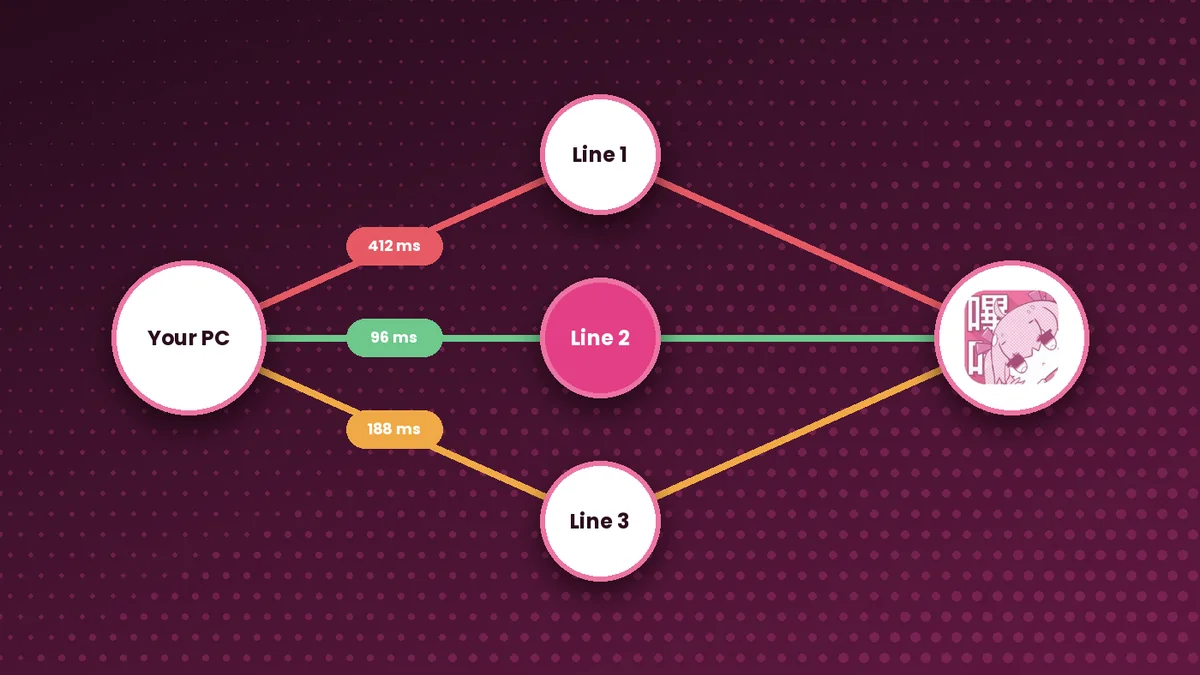
In the PicACG clients, alternative routes appear as numbered lines, sometimes called diversion or shunt lines. Each line sends requests through a different path or address to reach the same service. One line might be a direct connection, another might pass through a content delivery network and a third might act as a backup.
Lines matter because network conditions vary enormously by country, provider and time of day. A line that is excellent in one city can be unusable in another, and a line that is fast at noon can crawl at 10 pm when everyone is online.
Choosing the Fastest Line
The desktop client includes a speed test that measures latency for each available line.
- Open Settings → Network.
- Run the speed test.
- Select the line with the lowest latency for API requests.
- Do the same for the image server, if the client lists it separately.
- Save and return to browsing.
Reading the results
| Latency | Meaning |
|---|---|
| Under 150 ms | Excellent; pages should load nearly instantly |
| 150 to 300 ms | Good; minor delays on large pages |
| 300 to 600 ms | Usable but noticeably slow |
| Timeout or error | Line unreachable from your network right now |
Test again at different times of day. If one line is consistently fastest, keep it. If performance swings, remember which two lines are usually best and switch between them when things slow down.
Using a Proxy
Some networks block or throttle PicACG entirely, and lines alone cannot fix that. In those cases, a proxy routes the client's traffic through another server.
Proxy types
| Type | Characteristics | Typical use |
|---|---|---|
| HTTP | Simple and widely supported | Corporate networks, basic local proxy tools |
| SOCKS5 | Works at a lower level, handles more traffic types | Local proxy clients on your own machine |
Most people who use a proxy run a client application on their own computer that listens on a local address. In that case, the settings typically look like this:
- Type: SOCKS5 or HTTP, matching your proxy client.
- Host:
127.0.0.1 - Port: the port your proxy client listens on, for example
7890or1080.
Enter these values in the client's network settings, save and run the speed test again. Lines should now respond through the proxy.
System proxy versus client proxy
Your operating system may already route traffic through a proxy. The PicACG client may or may not follow system settings, depending on configuration. If browsing works in your web browser but not in the client, set the proxy explicitly inside the client rather than relying on the system setting.
DNS and Why It Matters
Before connecting, your device translates domain names into IP addresses using DNS. If your provider's DNS returns a wrong or blocked address, every connection to that domain fails, no matter which proxy or line you select.
Signs of a DNS problem include:
- One line never works, even when others do.
- The error mentions name resolution or an unknown host.
- The problem disappears instantly on a different network such as mobile data.
Fixes include switching your device or router to a reputable public DNS resolver, or enabling encrypted DNS in your operating system. On Android, Private DNS in network settings provides this system-wide. On Windows 11, encrypted DNS can be set per network adapter.
Diagnosing Login Problems
Login failures are the most common complaint, and they are rarely caused by a wrong password. Work through this sequence:
- Confirm the account works by signing in through another client or device on a different network. If it fails everywhere, reset the password through the official platform.
- Switch the API line. Login uses the API route; images do not matter yet.
- Check the system clock. A device clock that is several minutes wrong can break secure connections. Enable automatic time.
- Try a different network, such as mobile data instead of Wi-Fi. If it works there, your primary network is filtering traffic.
- Configure a proxy if a different network solves it but you need to use your primary one.
- Update the client. API changes on the platform side occasionally require a client update.
Error message guide
| Message or behaviour | Probable cause | Next step |
|---|---|---|
| Endless loading on login | API line unreachable | Switch line or add proxy |
| "Invalid username or password" | Credentials genuinely wrong | Reset password on the official platform |
| SSL or certificate error | Clock wrong, or traffic intercepted | Fix clock; avoid networks that intercept HTTPS |
| Timeout after a long wait | Network filtering or very slow route | Change network or use proxy |
| Works on mobile data only | Wi-Fi network blocks the service | Proxy or encrypted DNS on that network |
Diagnosing Image Problems
If you can log in and see comic lists but covers or pages refuse to appear, the API is fine and the issue lies with image delivery.
- Switch the image line separately from the API line.
- Lower image quality temporarily to confirm whether large files are timing out.
- Clear the image cache if pages that once loaded now show as broken. A corrupted cache entry can persist until cleared.
- Check disk space. A full drive prevents the cache from saving new images, which looks like a network problem but is not.
Fixing Downloads That Stop
Downloads are long sequences of image requests, so they are sensitive to unstable routes.
- Pause the queue.
- Run the speed test and select the fastest image line.
- Resume the queue; partially downloaded chapters continue rather than restart.
- If a specific chapter keeps failing on the same page, delete that chapter and download it again.
On Android, also confirm the app is excluded from battery optimisation. On desktop, confirm the computer is not sleeping during long queues.
Network Settings by Environment
Home broadband
Usually the easiest environment. Pick the fastest line and you are done. If speeds drop at night, keep a second line ready to switch to.
Mobile data
Latency is higher and less stable. Choose medium image quality, download chapters over Wi-Fi in advance and avoid large queues on metered connections.
Office, school or public Wi-Fi
These networks often filter entertainment services or intercept secure traffic. Respect the network's acceptable-use rules; if access is restricted, read offline chapters downloaded at home instead.
Travelling abroad
Line performance changes completely when you change countries. Re-run the speed test after arriving, and expect a different line to be fastest.
A Quick Diagnostic Routine
When something breaks and you want it fixed in under five minutes:
- Does the internet work in a browser? If not, the problem is your connection, not PicACG.
- Does login succeed? If not, switch API line, check clock, then try mobile data.
- Do covers load? If not, switch image line and clear the cache.
- Do downloads complete? If not, select the fastest image line and retry failed chapters.
- Still stuck? Update the client and check its GitHub issues for recent reports from other users.
Checking the Community for Outages
Sometimes the problem is not on your side at all. Platform maintenance, address changes or server outages affect everyone. The client's GitHub issues page is a good place to check: if several people reported the same problem in the last day, wait or follow the workaround they found. When opening an issue yourself, include your client version, operating system, network type and which lines you tested, and never include your password or tokens.
Security While Troubleshooting
Network problems can tempt people into risky shortcuts. Avoid them:
- Never disable certificate verification to make an error disappear.
- Do not use random free proxies that ask for your account credentials.
- Do not install "fixed" builds from unknown uploaders promising better connectivity.
- Use a unique password for your PicACG account.
Correct fixes, such as switching lines, adjusting DNS or using a trusted proxy, never require weakening security.
Building Your Personal Line Map
Because the best line depends on time and place, it helps to keep a small record of what works for you. After a few days of testing, write down which line is fastest in the morning, afternoon and evening on your home network, and which works best on mobile data. This takes a minute and saves guesswork later.
| Network | Morning | Evening | Notes |
|---|---|---|---|
| Home Wi-Fi | Line 2 | Line 3 | Line 1 slows after 9 pm |
| Mobile data | Line 2 | Line 2 | Use medium image quality |
| Travel hotspot | Test on arrival | Test on arrival | Results change by country |
When something slows down, you already know which alternative to try first.
Router-Level Improvements
Some connection problems originate in your home network rather than the wider internet.
- Restart the router if many services are slow at once. Consumer routers degrade after weeks of uptime.
- Update router firmware to receive performance and security fixes.
- Use 5 GHz Wi-Fi close to the router for higher speeds, and 2.4 GHz only when you are far away.
- Set DNS at the router so every device benefits from a reliable resolver.
- Avoid congested channels in apartment buildings by letting the router choose channels automatically or selecting a quieter one.
A wired Ethernet connection for a desktop computer removes Wi-Fi variability entirely and is ideal for large download queues.
Diagnosing With Basic Network Tools
A few built-in commands help you separate local problems from distant ones.
ping 1.1.1.1
nslookup github.com
tracert github.com
On macOS and Linux, use traceroute instead of tracert. If ping to a well-known address fails, your connection itself is down. If nslookup fails, DNS is the problem. If traceroute stalls at an early hop, the issue lies with your router or provider. These checks take seconds and point you directly at the right fix.
Keeping the Client Ready for Changes
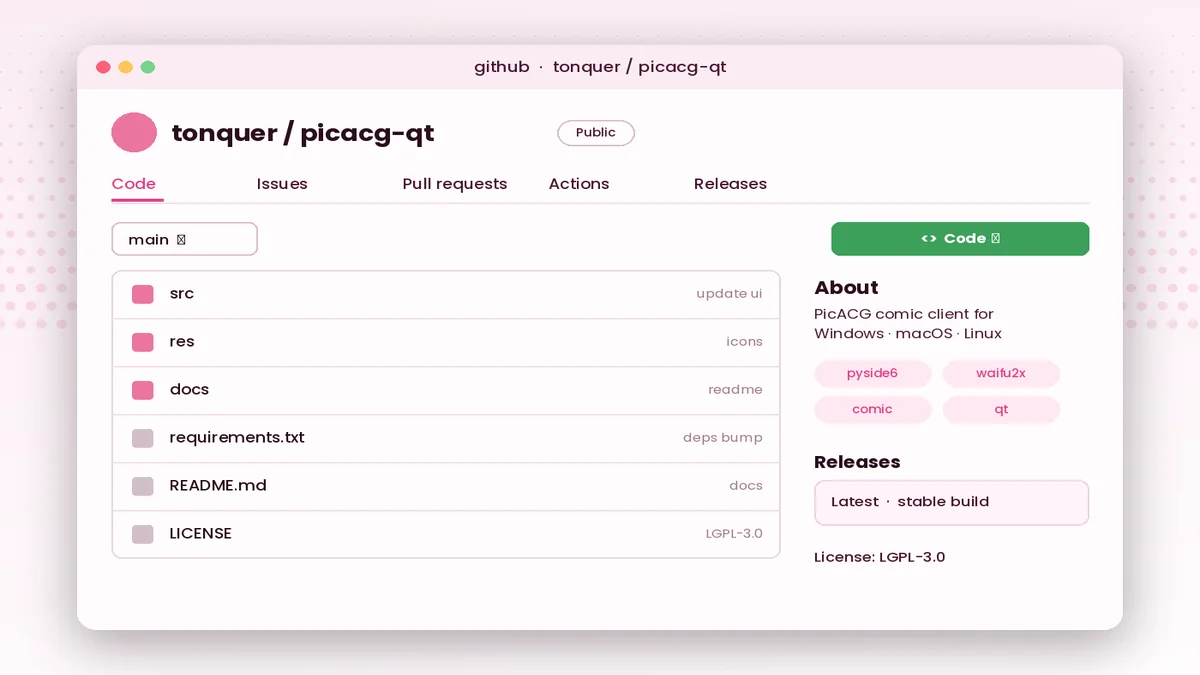
Platforms occasionally change addresses, certificates or API behaviour. Clients that are kept up to date adapt quickly, while outdated installations break. Watch the client's GitHub releases, read release notes when they mention networking, and update when a release fixes connection problems. If you run from source, pulling the latest code and reinstalling requirements is usually all it takes.
Summary
Most PicACG connection problems come down to routing. Choose the fastest API and image lines with the built-in speed test, configure a trusted HTTP or SOCKS5 proxy when your network needs one, fix DNS if names fail to resolve and keep your device clock accurate. Diagnose in order: internet, login, covers, downloads. With that routine, the vague spinner becomes a five-minute fix instead of an evening of frustration.
Frequently Asked Questions
Which diversion line is the best?
There is no universal answer. The best line depends on your location, provider and time of day. Use the speed test and choose the lowest latency.
Why does PicACG work on mobile data but not Wi-Fi?
Your Wi-Fi network or its DNS is likely filtering or misrouting traffic. Try encrypted DNS, a different line or, where permitted, a proxy.
Do I need a proxy to use PicACG?
Many users do not. A proxy is only necessary when your network blocks the routes the client uses.
Why do images break after they loaded before?
A corrupted cache entry or full disk is the usual cause. Clear the image cache and confirm you have free space.
Is it safe to share my login details when asking for help?
No. Never share passwords, tokens or cookies. Describe the problem and the steps you tried instead.